Help CenterDesign
Design: Customizing Campaign Appearance
Adjust colors, text, images and visual elements to align with your brand identity.
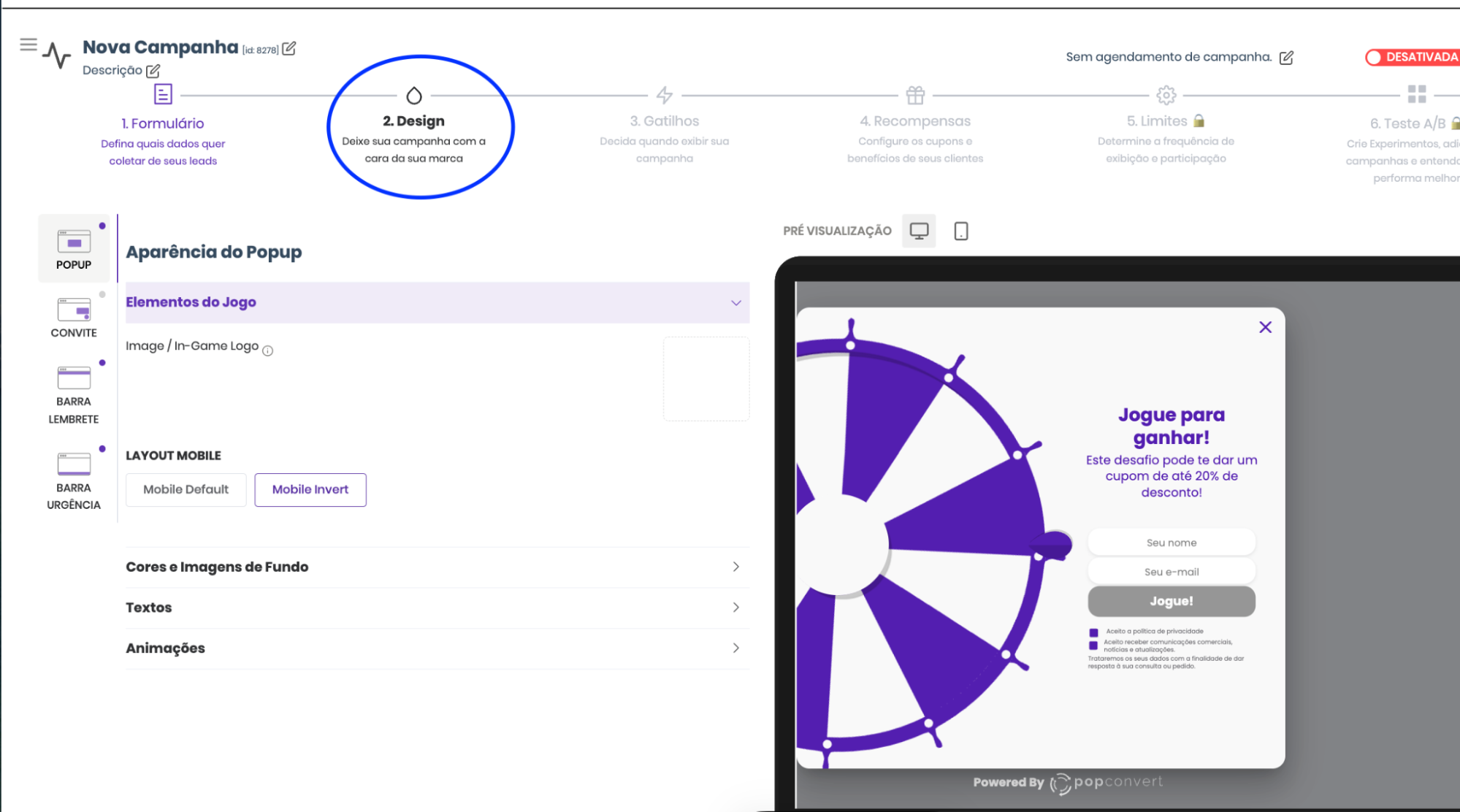
What is the Design Tab?
After creating your campaign, you can adjust all visual details in the Design tab: colors, text, background images, element positioning and display rules.
4 Configurable Elements
1. Pop-up (Main Game): Edit colors, text, buttons and background images. Set different backgrounds for Desktop and Mobile.
💡 You can swap the game and form positions on Mobile for a better visual experience.
2. Invitation Bar: Optional bar shown before the Pop-up. Disabled by default — enable in Triggers.
3. Reminder Bar: Shown to users who closed the Pop-up without participating.
4. FOMO Bar: Shown after the game with a countdown, encouraging immediate coupon use.
Best Practices
- Keep brand colors and fonts
- Use short, direct messages
- Use lightweight, optimized images
- Test on Desktop and Mobile before publishing
Not a Popconvert customer yet?