
This free image resizer lets you change dimensions in pixels or percentage, preserve or change aspect ratio, crop to a frame, rotate, choose an output format and adjust quality.
Image processing happens in the browser.
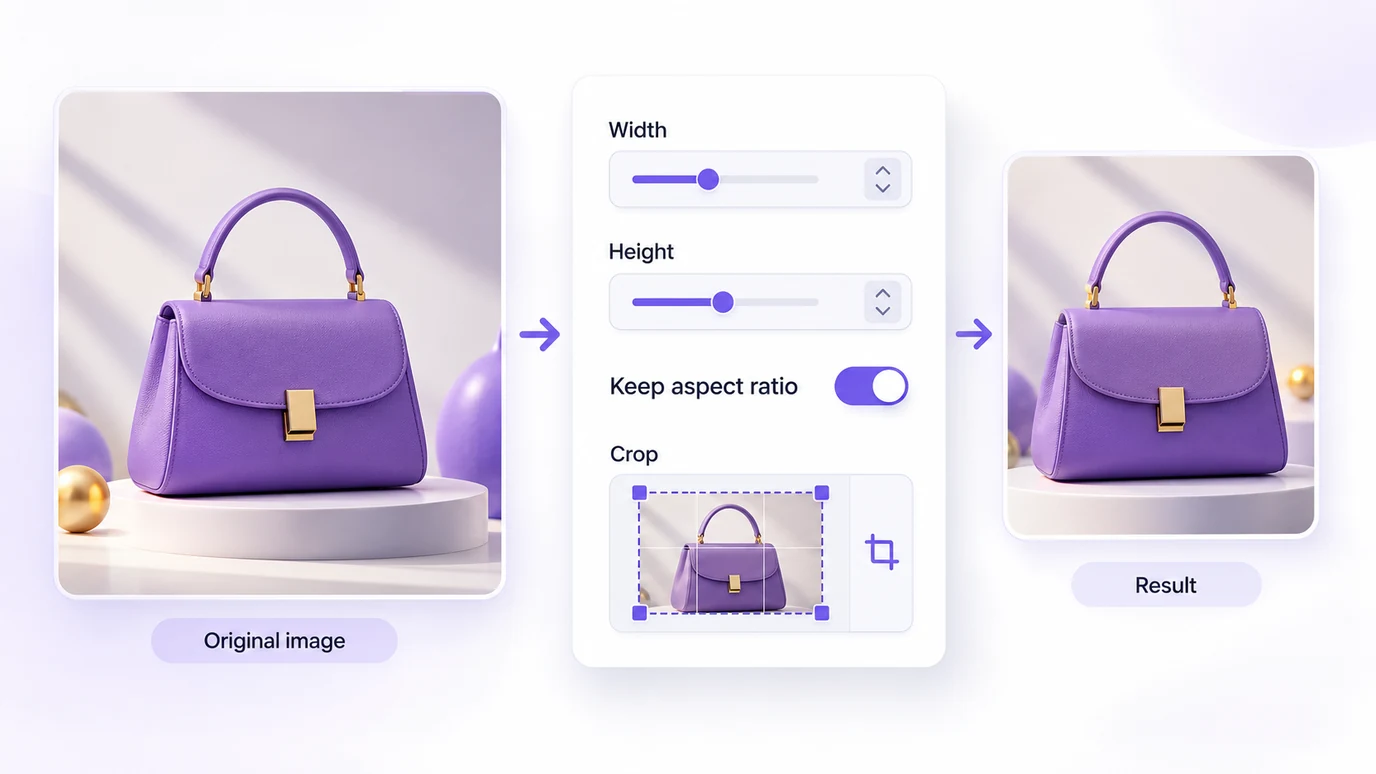
Resize an image for the context you need
Start with the destination, not the original file.
If an ecommerce platform needs a square product image, prepare a square file. If a banner needs a wide frame, crop the source rather than stretching it.
The image resizer supports:
- exact width and height in pixels;
- percentage scaling;
- aspect-ratio preservation;
- custom proportions;
- crop-to-fit;
- rotation;
- output quality control;
- PNG, JPEG and WebP output;
- multiple images at once;
- ZIP downloads.
AVIF input can be accepted when the browser supports decoding it. HEIC is outside the scope.
Pixels, percentage or aspect ratio?
Use pixels when the destination has a specific dimension.
Use percentage when you want to scale an image relative to its original dimensions.
Use aspect ratio and crop when the destination has a different shape from the source.
Resizing and compression are different
Resizing changes the pixel dimensions of an image. Compression changes how the image is encoded and can reduce the file size without necessarily changing its dimensions. You may need both.
Ecommerce presets
Nuvemshop
Minimum recommended: 1024 × 1024 px. Nuvemshop recommends at least 1024 × 1024 px for product images (the page is in Portuguese). It recommends 100–600 KB as an ideal file-size range, says files up to 1 MB are acceptable, and lists WebP, JPG and PNG as standard formats.
Shopify
Recommended for square product images: 2048 × 2048 px. Shopify states that product and collection images can be up to 5000 × 5000 px or 25 megapixels, with a file size below 20 MB. For square product images, Shopify says 2048 × 2048 px usually works best.
Instagram, Facebook and Google ads
Instagram and Facebook feed: 1440 × 1800 px, 4:5 aspect ratio. Meta lists JPG or PNG up to 30 MB for the feed. For Stories and Reels, the size is 1440 × 2560 px (9:16) as the recommended minimum. The tool also includes the Explore, Marketplace, right column and search formats.
Google Ads (responsive display ad): 1200 × 628 px landscape and 600 × 600 px square. Google lists minimums of 600 × 314 px and 300 × 300 px, and logos of 1200 × 1200 px (square) and 1200 × 300 px (landscape).
Popconvert campaign images
The size selector also includes the sizes of the popup and landing background images (QR Code campaigns) for Popconvert campaigns (Spin the Wheel, Slot Machine, TNT and Scratch Card, on desktop and mobile). These are not official platform documentation: Popconvert measured them on its own campaigns, and the tool labels them that way.
Choose the output format
PNG is useful when transparency matters.
JPEG is commonly useful for photographs and supports adjustable lossy quality.
WebP is available as an output when supported by the browser.
AVIF input is detected according to browser support.
How to resize an image
- Select one or more images.
- Review the original dimensions and file size.
- Choose pixels or percentage.
- Keep the aspect ratio locked when needed.
- Crop to the target frame when needed.
- Choose the output format.
- Adjust quality.
- Review the preview and final file size.
- Download individual files or a ZIP.
The original file is not replaced.
Handle EXIF orientation correctly
Photos captured by phones and cameras can contain EXIF orientation metadata.
The tool reads that orientation before resizing and permanently renders it into the output pixels. The output is a newly encoded image and does not preserve the original file's metadata.
When resizing can hurt image quality
Downscaling and upscaling are not equivalent. When you enlarge a small image, increasing dimensions does not recreate details that were never present. Cropping can also remove important product information.
Check the final dimensions, aspect ratio, crop, sharpness, transparency, format and file size before downloading.
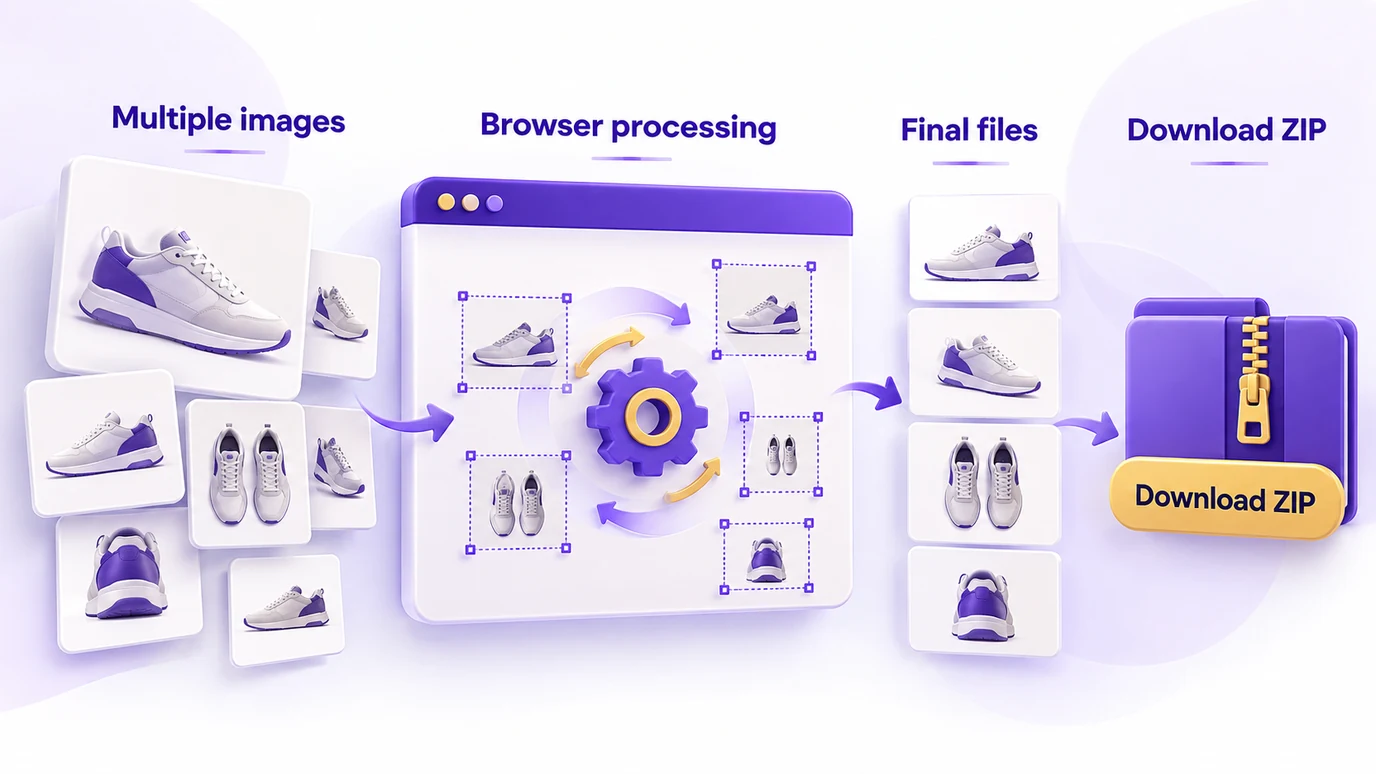
Batch image resizing
When several product photos need the same dimensions, processing them one at a time creates unnecessary work. Batch resizing applies the same settings to multiple selected files. Results can be downloaded individually or as a ZIP. Processing remains in the browser.
Resize images for ecommerce
The useful question is not “what is the largest image I can upload?” It is: what dimensions does this image actually need for the place where it will be used?
A product image may need enough resolution for zoom. A campaign asset may need a specific ratio. A banner may require a wide frame. Prepare each file according to its destination.
What an image resizer cannot do
Resizing does not restore missing detail. It does not guarantee that one file will be perfect for every platform. Reducing pixel dimensions also does not guarantee a proportional reduction in file size.
If the goal is specifically to reduce file weight while keeping dimensions, that is a compression task.
Browser-based processing
This tool processes images directly in the browser. No account is required. The selected file stays in the local processing flow and is not uploaded to a server. The tool creates a new version instead of replacing the source.
Conclusion
Resizing an image correctly means choosing dimensions, proportions, format and quality according to the final use. For ecommerce, start with the platform and the space where the image will appear. Choose the destination first. Then create the file that actually belongs there.
Questions about resizing images
How do I resize an image online?
To resize an image online, select the file, enter the target dimensions or percentage, keep the aspect ratio when needed, and download the result.
How do I resize an image without distortion?
To resize an image without distortion, keep the aspect ratio locked so width and height change proportionally.
How do I resize an image to exact pixels?
To resize an image to exact pixels, enter the final width and height and check the preview before downloading.
How do I resize an image by percentage?
To resize an image by percentage, choose percentage scaling and enter the amount of the original size you want to keep.
How do I resize an image to 1024×1024?
To resize an image to 1024×1024, set both dimensions to 1024 pixels and crop the image if its original aspect ratio is different.
What size should I use to resize an image for Nuvemshop?
To resize an image for Nuvemshop, use 1024×1024 pixels as the minimum recommended product-image reference.
What size should I use to resize an image for Shopify?
To resize an image for Shopify, 2048×2048 pixels is usually recommended for square product images.
How do I resize an image for ecommerce?
To resize an image for ecommerce, identify the dimensions and aspect ratio required by the space where the product image will appear.
How do I resize an image to reduce photo size?
To resize an image and reduce photo size, lower its pixel dimensions and adjust JPEG or WebP quality when necessary.
Does resizing an image reduce file size?
Resizing an image can reduce file size, but the final weight also depends on the output format and encoding quality.
How do I resize an image without losing quality?
To resize an image with the best possible quality, avoid excessive enlargement and use dimensions appropriate for the final display area.
How do I resize and crop an image together?
To resize and crop an image together, choose the final frame and crop the source instead of stretching it.
How do I resize multiple images at once?
To resize multiple images at once, select several files and apply the same dimensions, aspect ratio, format and quality settings.
How do I resize images and download them as a ZIP?
To resize images and download them as a ZIP, process multiple files and use the grouped download when the results are ready.
How do I resize a PNG image?
To resize a PNG image, select the file, set the new dimensions and keep PNG as the output when transparency matters.
How do I resize a JPEG image?
To resize a JPEG image, set the target dimensions and adjust output quality to balance visual quality and file size.
How do I resize a WebP image?
To resize a WebP image, select the file, set the target dimensions and choose WebP as the output when supported.
How do I resize an AVIF image?
To resize an AVIF image, the browser must support AVIF decoding; when supported, the file can enter the resizing workflow.
How do I resize an image without uploading it to a server?
To resize an image without uploading it to a server, use a browser-based tool that performs the image processing locally.
Does an image resizer remove metadata from the original file?
When you resize an image, the result is a newly encoded image and does not preserve the original file's metadata.
What about the images in your store campaigns?
The same principle applies to ecommerce campaign assets and pop-ups: the image should fit the space where the visitor will see it instead of being stretched or unexpectedly cropped. In Popconvert, colors, text, images and visual elements of a campaign are adjusted in Design; see the Help Center.