Enlarging an image: what really happens
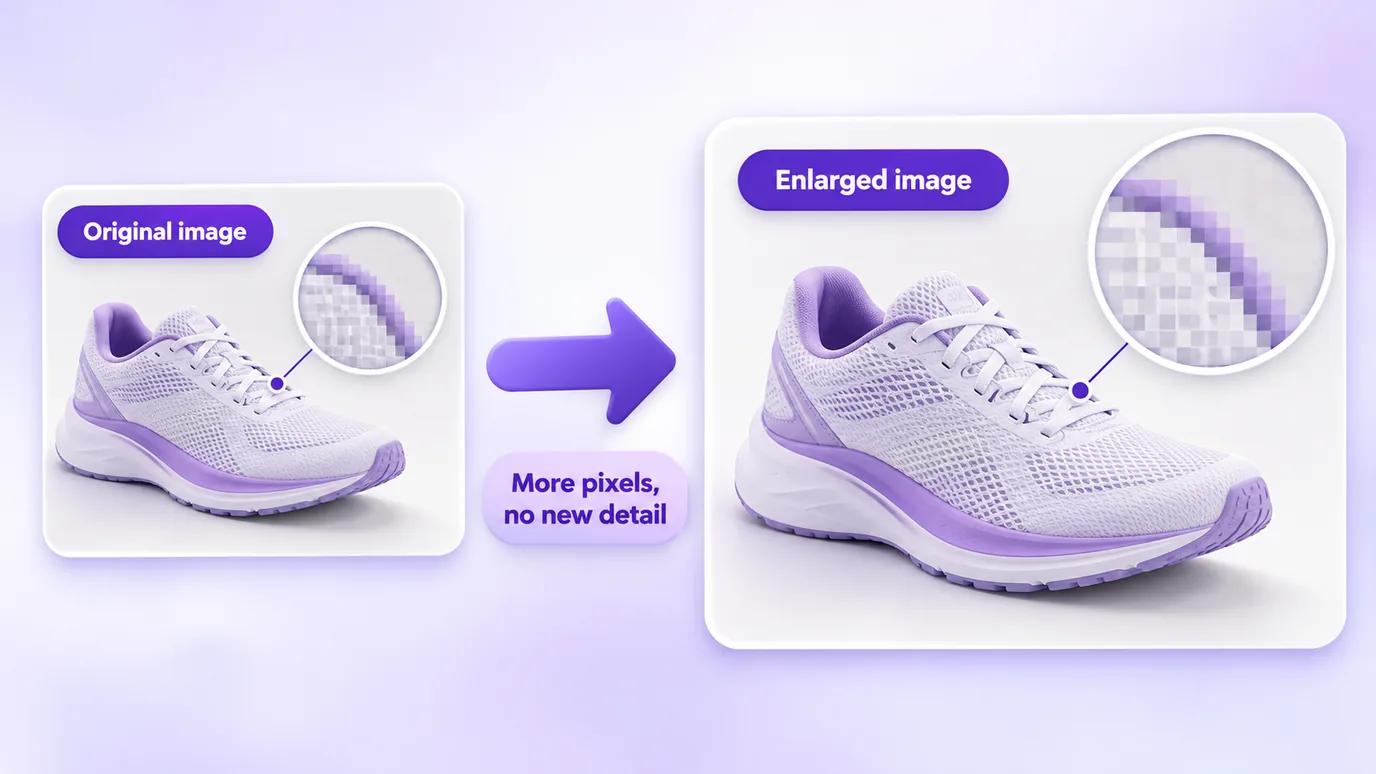
Enlarging an image means moving to a larger width and height, in pixels. Since the original photo does not have the missing pixels, the browser calculates the new pixels from their neighbors (interpolation).
The result is a bigger image but with no new detail: the larger the enlargement, the more likely it looks blurry or jagged. This tool does not use artificial intelligence to invent detail.
How to enlarge an image
- Choose the image or drag the file into the box. Nothing is sent to a server.
- Choose how much to enlarge (125%, 150%, 200%, 300% or 400%) or enter the final width in pixels; the height follows the aspect ratio.
- Check the thumbnail and the dimensions under "After". If the image gets blurry, choose a smaller enlargement.
- Download the image.
When enlarging works well
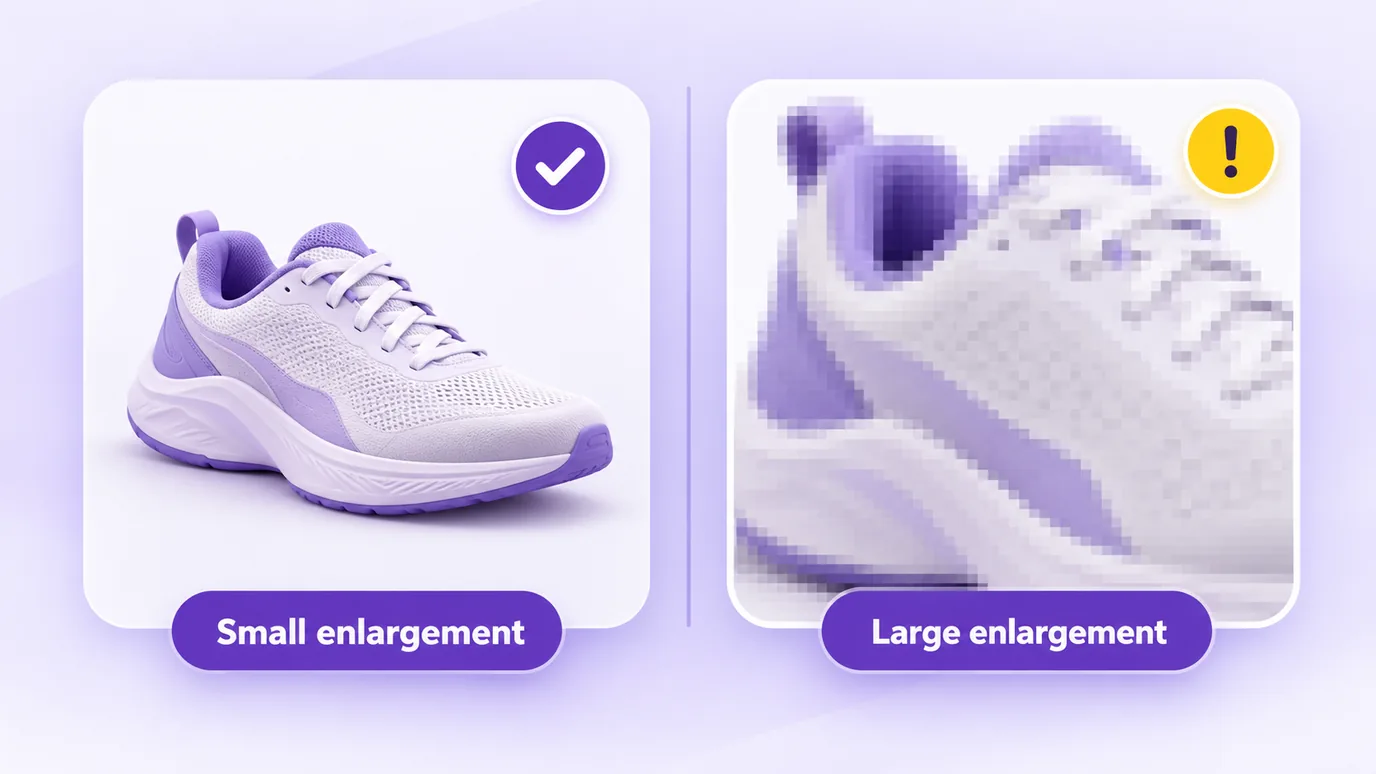
- Small enlargements (for example, up to 150%) usually go unnoticed.
- Simple images, with flat colors and few fine details, suffer less than photographs with textures.
- Whenever possible, the best path is to use the original file in its highest resolution rather than enlarging a small copy.
Tool limits
- The longest side of the image can reach 16384 px, and the final image can have up to 60 megapixels.
- Up to 30 images at a time, with 50 MB per file.
- The generated image is new, without the metadata of the original file (such as EXIF).
Questions about enlarging an image
How do I enlarge an image online?
To enlarge an image online, add the file, choose an enlargement in percentage (or the final width in pixels) and download the result. The height follows the original aspect ratio.
Can I enlarge an image without losing quality?
Not completely. When you enlarge an image, the new pixels are calculated from their neighbors and the photo gains no real detail. Small enlargements are barely visible, but large ones make the image blurrier.
What is the difference between enlarging an image and improving its resolution?
Enlarging only moves the image to a larger width and height. Truly improving the resolution would require recreating detail, which this tool does not do: it enlarges by interpolation, without artificial intelligence.
How much can I enlarge an image?
This tool lets you enlarge up to 400% or set a width in pixels, with a limit of 16384 px on the longest side and 60 megapixels on the final image. In practice, smaller enlargements give a better result.
How do I enlarge an image to a specific width, such as 1920 px?
To enlarge an image to a specific width, enter the final width in pixels (for example, 1920). The height is calculated to keep the original aspect ratio.
Does enlarging an image increase the file size?
Usually yes: more pixels tend to mean more KB. The final weight appears under "After" and can be adjusted with the format and quality; to reduce the weight after enlarging, use the tool to reduce the image size.
Which format is best for enlarging an image?
Keep the original format to avoid further losses. For photographs, JPEG or WebP at a high quality work well; for logos and graphics, PNG preserves edges and transparency.
Can I enlarge several images at once?
Yes. You can enlarge up to 30 images at a time with the same setting and download them all in a ZIP file.
Is my image uploaded to a server when I enlarge it?
No. When you enlarge the image, the processing happens in your browser and the file is not sent to any server.
Other ways to adjust the image
The same in-browser tool, to: